
One PDF, one table, due by lunch
A supplier sends a price list as a PDF. Your bank exports a statement as a PDF. An auditor wants figures that only exist in a PDF someone built three years ago.
The numbers are right there on the screen. Excel can't touch them.
So most people start typing. That works, slowly, until it doesn't. Most benchmarks put day-to-day manual data entry error rates at 1-4% of fields, even for experienced staff.
That sounds small. It isn't. With ten fields per row and a 1% field error rate, roughly one row in ten has a mistake in it before anyone has checked a thing.
This guide covers the one-off job: a single file that needs to get from PDF to Excel once. Below are four ways to extract data from a PDF to Excel, from simplest to most automated, and when each one is the right call.
If the same report lands in your inbox every month, that's a different problem with a different fix. We covered it in Converting PDF to Excel When It's the Same Report Every Month.
First, the 10-second test
Before you pick a method, open the PDF and try to highlight a single word inside the table.
- The word highlights on its own. You have a digital (native) PDF. It was exported from software, and there's a real text layer underneath. Copy-paste and Excel's own import can work with it.
- You get a box, or the whole page selects like a picture. You have a scanned PDF, which is effectively a photo of paper. There's no text to copy, only pixels.
If you can't select the text, copy-paste won't work and neither will Excel's import. Anything without OCR (text recognition) will hand you a blank or an error.
That one test rules out half your options before you've wasted an afternoon on them.
Second, how messy is the table?
Here's what converter websites don't advertise: a PDF doesn't actually contain a table. There are no rows, no columns, no cells. A PDF just places text at positions on a page.
Every tool on this list is reverse-engineering a grid from where text happens to sit. Clean tables survive that guesswork. One page, ruled lines, one value per cell, and almost any method will do.
Messy tables don't. Watch for:
- Merged cells or headers stacked over two or three lines
- Tables that run across several pages, with the header repeated on each one
- Borderless layouts where only white space separates the columns
- Descriptions that wrap onto a second line inside a cell
- Currency symbols, footnote markers, or subtotal rows mixed into the data
These are where standard converters break. The more of them your file has, the further down this list you'll end up.
The four options, simplest first
- Copy and paste, plus a couple of rescue tricks
- Excel's built-in "Get Data from PDF"
- Free online PDF-to-Excel converters
- AI extraction, for scanned or messy layouts
We'll take them in that order, with a plain answer at the end on when each one makes sense.
Option 1: Copy and paste
It's free, it's already on your computer, and for a small clean table it's often the fastest route. Everyone tries it first, and that's fine.
It works when three things are true. The PDF is digital (it passed the highlight test), the table fits on one page, and there are maybe a dozen rows, not two hundred.
How to do it
- Open the PDF and drag across the table to highlight it.
- Press Ctrl+C (Cmd+C on a Mac).
- Click cell A1 in a blank sheet and press Ctrl+V.
Sometimes that's the whole job. More often, you get this instead.
Why everything lands in column A
The most common result is a mess of text squeezed into a single column. Your neat five-column table is now one long stack of values. Sometimes each row arrives intact but jammed into one cell.
The reason goes back to the start. When you copy from a PDF, the clipboard holds characters and spacing, not cells. Excel has nothing telling it where one column stops and the next begins.
You can fix this in two ways before you give up on copy-paste.
Rescue trick 1: Text to Columns
Text to Columns is Excel's built-in tool for splitting one column of text into several.
- Select the column with the pasted data.
- Go to Data → Text to Columns.
- Choose Delimited and tick Space, or choose Fixed width and drag the break lines yourself.
- Check the preview, then click Finish.
On a table of plain numbers, this works well. It breaks down on text. A description like "Steel bracket 40mm" contains spaces, so a space-delimited split turns it into three columns and pushes every value after it out of place. Fixed width fails too when values have different widths.
One workaround is to copy the description column separately from the number columns, convert each, and stitch them back together. It's fiddly, but it beats retyping.
Rescue trick 2: The Word (or Google Docs) detour
This one surprises people. Microsoft Word can open a PDF directly and convert it into an editable document, and its converter usually rebuilds tables better than the clipboard does.
- In Word, go to File → Open and pick the PDF.
- Click OK when Word warns that it's converting the file.
- Find the table, select it, and copy it.
- Paste it into Excel.
Because you're pasting a real Word table into Excel, the rows and columns often come through intact. No Word? Google Docs does the same thing: upload the PDF to Google Drive and choose Open with → Google Docs.
The detour isn't flawless. The conversion can leave jumbled paragraphs and misaligned fields, so check the result against the original before trusting it.
The cleanup nobody mentions
Even when the grid survives, the data inside it often doesn't come through clean. Before you sum anything, check for these:
| What you see | What's going on | Quick fix |
|---|---|---|
| Green triangles, SUM returns 0 | Numbers pasted as text | Select the cells, click the warning icon, then Convert to Number |
| 03/12 reads as December, not March | Date format differs from your regional settings | Re-enter the dates with Text to Columns → Date (DMY/MDY) |
| Lookups fail on values that look identical | Hidden leading or trailing spaces | =TRIM(A2), then paste back as values |
| "€1,250.00" won't calculate | Currency symbol stuck to the number | Find & Replace the symbol, then convert |
Those are the errors that slip past a quick glance. A total that's off by one text-formatted cell looks perfectly reasonable on screen.
When copy-paste won't work at all
- Scanned PDFs. There's no text layer, so nothing useful reaches the clipboard. Skip to Option 4.
- Locked PDFs. If the file is read-only or password-protected, you may not be able to select or copy anything. You'll need the password, or a copy from the sender with the right permissions.
The verdict
Copy-paste is the right call for a short, simple table you need once, in a file you can already highlight. Give it one honest try, plus one rescue trick.
If you're on your third Text to Columns attempt, stop. Excel has a better tool built in, and that's next.
Option 2: Excel's own "Get Data from PDF"
This is the method most people never find. Excel can read a PDF directly and pull the tables out for you, with no add-ins and no uploads. It lives under the Data tab, which is why nobody looks there.
It runs on Power Query, the same engine Excel uses to import CSVs and databases. For a digital PDF on Windows, this is usually the best free option there is.
How to do it
- Open a blank workbook and go to Data → Get Data → From File → From PDF.
- Pick your PDF and click Import.
- In the Navigator window, click through the items on the left. Excel lists every table it detected, plus each full page. The preview on the right shows what you'd get.
- Pick the right one, then choose Load to drop it straight into a sheet, or Transform Data to clean it up in the Power Query Editor first.
Tip: pick a named table (Table001, Table002) over a whole page whenever you can. If Excel couldn't find a clean table, it offers the entire page instead, which tends to drag in headers, footers and stray text that aren't part of your data.
What it does better than copy-paste
- It reads structure, not just characters. You get rows and columns, loaded as a proper Excel table you can sort and filter.
- It stitches multi-page tables together. By default, similar tables on consecutive pages are combined into one. A six-page statement can come through as one table instead of six.
- It lets you limit the page range. On a long report, you can tell it to look only at pages 4 to 9.
- It cleans before it lands. Every fix you make in the editor happens before the data reaches your sheet.
Three cleanup moves worth knowing
The Power Query Editor looks intimidating. For a one-off job, you only need three buttons.
- Use First Row as Headers (Home tab). Fixes the common case where your column names came in as row 1 of the data.
- Remove Rows → Remove Top Rows, or filter a column. Gets rid of report titles, repeated headers, and "Page 3 of 7" footers.
- Change Type → Using Locale (right-click the column header). This is the one that saves you from date disasters. If the PDF writes 12/03/2026 and your system reads it US-style, March 12 becomes December 3, and nothing looks wrong until someone files a December invoice in March.
Even when the import looks perfect, check the entries before you rely on them. Your local Excel settings and the way the report was produced can both need small adjustments.
Where it falls short
- Scanned PDFs. Power Query needs a text layer. Feed it a scan and you'll usually get an empty Navigator or nothing usable.
- Mac. On Excel for Mac, Power Query imports from Excel workbooks, Text/CSV, XML, JSON, SQL Server, SharePoint lists and OData. PDF isn't on that list. Mac users need a different route.
- Version. The connector comes with current Windows versions of Excel through Microsoft 365. If "From PDF" isn't in your menu, an older standalone Office is the likely reason.
- Messy layouts. Borderless tables, merged cells, and descriptions that wrap onto two lines still trip it up. Microsoft's own documentation admits multi-line rows sometimes aren't identified properly, and suggests fixing them with UI operations or custom M code.
That last point is the tell. When the official fix involves writing M code, you've stopped doing a quick one-off conversion. You're doing a data engineering project.
A side door for scanned pages: Data from Picture
Excel has one more trick that works on images. Data from Picture turns a photo or screenshot of a table into cells. It sends the image to Microsoft's servers, then returns the converted table for you to review.
It's handy for one small table on a scanned page: screenshot the table, insert it, fix what it flagged. It also works on a Mac. Don't expect miracles on anything complicated, though. Its known weakness is deciding what belongs in one cell. A currency symbol, a space and a number can end up spread across three cells.
The verdict
If your PDF is digital and you're on Windows Excel with Microsoft 365, start here. It beats copy-paste on anything longer than a few rows, and nothing leaves your computer.
If the Navigator shows nothing, or hands you a page of mismatched columns that would take an hour to fix, move on.
Option 3: Free online converters
Search "pdf to excel" and you'll get a wall of them: Smallpdf, iLovePDF, PDF24, Zamzar, PDF2Go and plenty more. They all work the same way. Upload your PDF, wait a few seconds, download the Excel or CSV file.
For a Mac user without Power Query's PDF import, this is often the first real option. It's also the one that needs the most caution.
How to do it
- Open the converter's PDF to Excel tool.
- Upload the file. If you only need one table, extract those pages first, since most tools convert the whole document.
- If the tool offers an OCR option, use it only for scanned files. For a digital PDF, a no-OCR conversion is faster and usually keeps the table structure cleaner.
- Download the .xlsx and check it against the original.
What "free" actually gets you
Free tiers are built for the occasional file, and the limits show up quickly:
- Smallpdf: the free tier is limited to a couple of tasks a day, with a small file size cap.
- iLovePDF: converting a scanned PDF needs OCR, and that's a Premium feature.
- PDF24: no task limits, funded by advertising. It also has a free Windows desktop app, PDF24 Creator, which works offline, so your files stay on your computer.
These limits change often, so check the current terms before you count on them. And if your file is scanned, assume the free tier won't handle it.
Where converters break
Converters face the same problem as every other method here: they rebuild a grid from where text sits on the page. Clean single-page tables come through fine. Messy ones don't.
Merged headers, multi-page tables and borderless layouts produce the same shifted columns you'd get from copy-paste, just faster.
One practical tip: results vary a lot from tool to tool on the same file. If the first converter mangles your table, try a second one before you start fixing cells by hand.
The privacy question
Here's the trade-off nobody puts on the upload button. When you upload a file, you're sending a copy of your data to someone else's server. You're trusting a company you know nothing about with whatever is in that PDF.
A useful rule of thumb: if you'd happily email the document to a stranger, an online converter is a similar level of risk. If you wouldn't, don't upload it. That rules out:
- Bank statements and payment reports
- Payroll, HR or employee records
- Client files and anything carrying customer personal data
- Contracts, IDs, and anything with signatures or account numbers
For EU teams, that last category isn't just a security question. Uploading customer personal data to an unvetted service can create a data-protection problem you'll have to explain later.
If you must use a converter on something sensitive, at least check that the site uses HTTPS and has a readable privacy policy that says what happens to your files and how long they're kept.
Better still, convert locally. PDF24 Creator runs offline on Windows. Tabula, a free open-source desktop app, lets you select a table area and export it to CSV or Excel, all on your own machine. Neither reads scanned PDFs, though.
When you want PDF to CSV instead of Excel
Most converters offer CSV as an output too, and sometimes it's the better choice.
An .xlsx file is for people: formatting, multiple sheets, formulas. A CSV is plain text, one table, no formatting at all. That makes it the right format when the data is headed into another system rather than a person's inbox:
- An accounting or ERP import
- A BI tool, database or script
- Bulk-uploading line items somewhere
One trap: double-clicking a CSV opens it in Excel with Excel's guesses applied. Leading zeros vanish from account codes and postcodes, and dates get reinterpreted using your regional settings. Import it via Data → From Text/CSV instead, and set the column types before you load.
The verdict
Free converters are the right call for a digital, non-sensitive PDF when Power Query isn't an option, or when Power Query made a mess of it. Try two tools before giving up.
They're the wrong call for scanned files on a free plan, and for anything confidential, full stop. For those, you need something that reads the document properly and doesn't leave your data on a stranger's server.
Option 4: AI extraction for scanned and messy PDFs
Every option so far tries to copy the page. Copy-paste copies its characters, Power Query and converters copy its grid. When the page is clean, a copy is all you need.
AI extraction works the other way round. You don't ask for a copy of the page. You say what data you want, and the tool finds it, wherever it sits and however the page looks.
That difference matters most in exactly the cases that broke Options 1 to 3.
When it's worth reaching for
- The PDF is scanned, or it's a phone photo. There's no text layer, so copy-paste and Power Query have nothing to work with.
- The table fights back. Merged headers, descriptions wrapping onto two lines, a table running across five pages with the header repeated on each.
- You need specific columns, not the whole page. Say you want supplier, date, quantity and line total, and the PDF has fourteen columns plus a logo, a footer and a remittance slip.
- The data is sensitive. A bank statement or client file that shouldn't go to an anonymous converter.
How to convert a scanned PDF to Excel
Scans are where most people get stuck, so it's worth being specific.
A scanned page is an image. Before anything can become a cell, the text has to be recognised (OCR), and then the structure has to be rebuilt. Plain OCR only does the first half. It turns pixels into text, but it has no idea which number is the total and which one is the VAT.
So "just run OCR" usually leaves you with a block of text and the same retyping job as before. You need a tool that recognises the text and then understands the table, in one pass. That's what AI extraction does.
What about pasting it into a chatbot?
It's tempting. Upload the PDF to a general AI chatbot, ask for a table, copy the result into Excel. For a short, clean table it often works.
The risk is the kind of mistake it makes. A general chatbot is built to give you an answer. Ask it for a value, and you'll usually get one, even when the box on the page is empty. It might also drop a row from a long table, or "tidy" a number while reformatting it.
None of that is flagged. You get a neat table that looks exactly as trustworthy as a correct one. If you go this route, check every figure against the original. For more on why this happens, see Why Generic AI Extraction Tools Guess.
The fix isn't avoiding AI. It's using a tool that checks its own output and tells you which fields to look at.
How it works in Foxello
Here's what a one-off job looks like in Foxello, start to finish:
- Start a free trial. 30 days, 100 pages, no credit card.
- Create a workflow and describe what you want. It takes about a minute. List the fields in plain language: "invoice date", "total including VAT", "line items with description, quantity and unit price". For common documents such as invoices, ready-made models skip this step entirely.
- Upload the PDF. A clean export, a crooked scan, a phone photo: they all go through the same workflow, handwriting included.
- Check what's flagged. Every field gets its own confidence score. Low-confidence fields go to review, where you fix them in a few keystrokes. Everything else is already done.
- Export. Download the result as CSV, or as an Excel file on the Growth and Scale plans. Pick Growth when you start the trial if you want .xlsx straight away.
The line items come out as one table, not thirty loose values. You can review it as a grid, row by row, against the original page.
Why it holds up on messy pages
Two design choices do most of the work.
First, Foxello rebuilds the page's structure before extracting anything. Columns stay columns, labels stay next to their values, and tables keep their rows and headers, including tables that continue across several pages. That's the shifted-column problem from Options 1 to 3, handled before it starts.
Second, every value has to trace back to the page. If an extracted value can't be found in the document, its confidence drops to zero, however sure the model sounded. An invented number goes to review instead of into your spreadsheet.
One tip that pays off immediately: describe fields by what they mean, not just their label. "The purchase order number we issued, not the supplier's own order reference" leaves far less room for mix-ups than "PO number".
Where it doesn't make sense
AI extraction isn't the answer to every PDF:
- A clean 10-row table in a digital PDF. Copy-paste or Power Query will finish before you've named the workflow.
- Beyond the trial, it costs money. Plans start at €12.49 a month billed annually, and one page uses one token. That's cheap next to an afternoon of retyping, but it isn't free.
- It doesn't remove the human entirely. You still glance at the flagged fields. The point is that you check two values, not two hundred.
Your documents stay in the EU and are never used for training, which settles the privacy question from Option 3 without a privacy-policy hunt.
The verdict
AI extraction is the right call for scanned files, ugly layouts, sensitive data, and any job where you want specific columns rather than a copy of the whole page. It's overkill for a tidy table you could copy in thirty seconds.
That leaves one practical question: for your file, which of the four should you try first?
Which method when
Four options, one file on your desk. Here's how they stack up.
| Copy and paste | Excel "Get Data from PDF" | Free online converter | AI extraction | |
|---|---|---|---|---|
| Scanned PDFs | No | No | Usually a paid OCR feature | Yes, including photos and handwriting |
| Messy tables | Poor | Handles multi-page; struggles with merged cells and wrapped rows | Varies a lot by tool | Good |
| File leaves your computer | No | No | Yes, unless you use a desktop app | Yes, to the provider (Foxello: EU-hosted, never used for training) |
| Cost | Free | Included with Microsoft 365 on Windows | Free, with daily limits | Free trial, then paid |
| Setup time | Seconds | A minute or two | A minute | A few minutes |
| Best for | A short, clean table you need once | Digital PDFs on Windows, longer tables | Digital, non-sensitive PDFs, especially on Mac | Scans, ugly layouts, sensitive files, specific columns |
If you'd rather not read a table, follow the map:
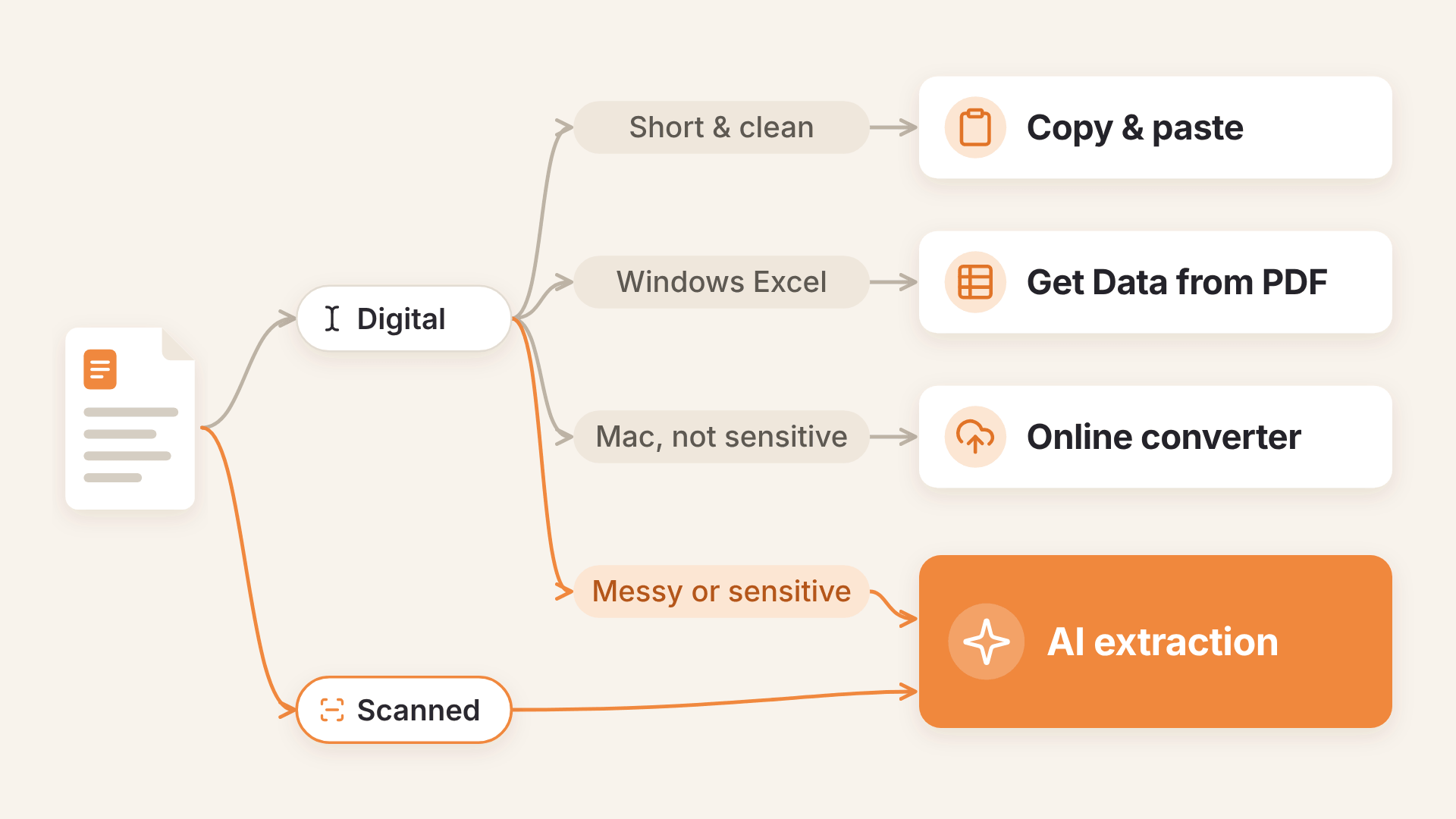
The short version
- Start with the cheapest method that fits your file. Don't open a new tool for a ten-row table you can copy in thirty seconds.
- Move down the list as soon as it fights back. One honest attempt per method is enough. If you're on your third Text to Columns try or your second converter, stop fixing and switch.
- Let the PDF type decide first. A scanned file skips straight past Options 1 to 3. Testing them first only costs you an afternoon.
- Let the data decide second. Bank statements, payroll and client records don't go to anonymous upload sites, however convenient.
One more question: will you do this again?
Everything above assumes a one-off: one file, converted once, done.
Be honest about whether that's true. If the same supplier statement, settlement report or stock list lands every month, the right answer changes. A process that's fine once becomes days of retyping over a year, and the mistakes compound with it.
That's a different job with a different fix. We covered it in Converting PDF to Excel When It's the Same Report Every Month.
Close
Getting a PDF table into Excel without retyping it is mostly a matching exercise. Clean digital file: copy it or let Excel import it. Mac and nothing sensitive: try a converter. Scanned, ugly or confidential: extract it.
Whatever you pick, check the result against the original before anything gets summed, posted or paid. A spreadsheet that looks tidy isn't the same as one that's right.
Got a PDF that beat the other three? Try it on Foxello's free start: 100 free pages, no credit card required.