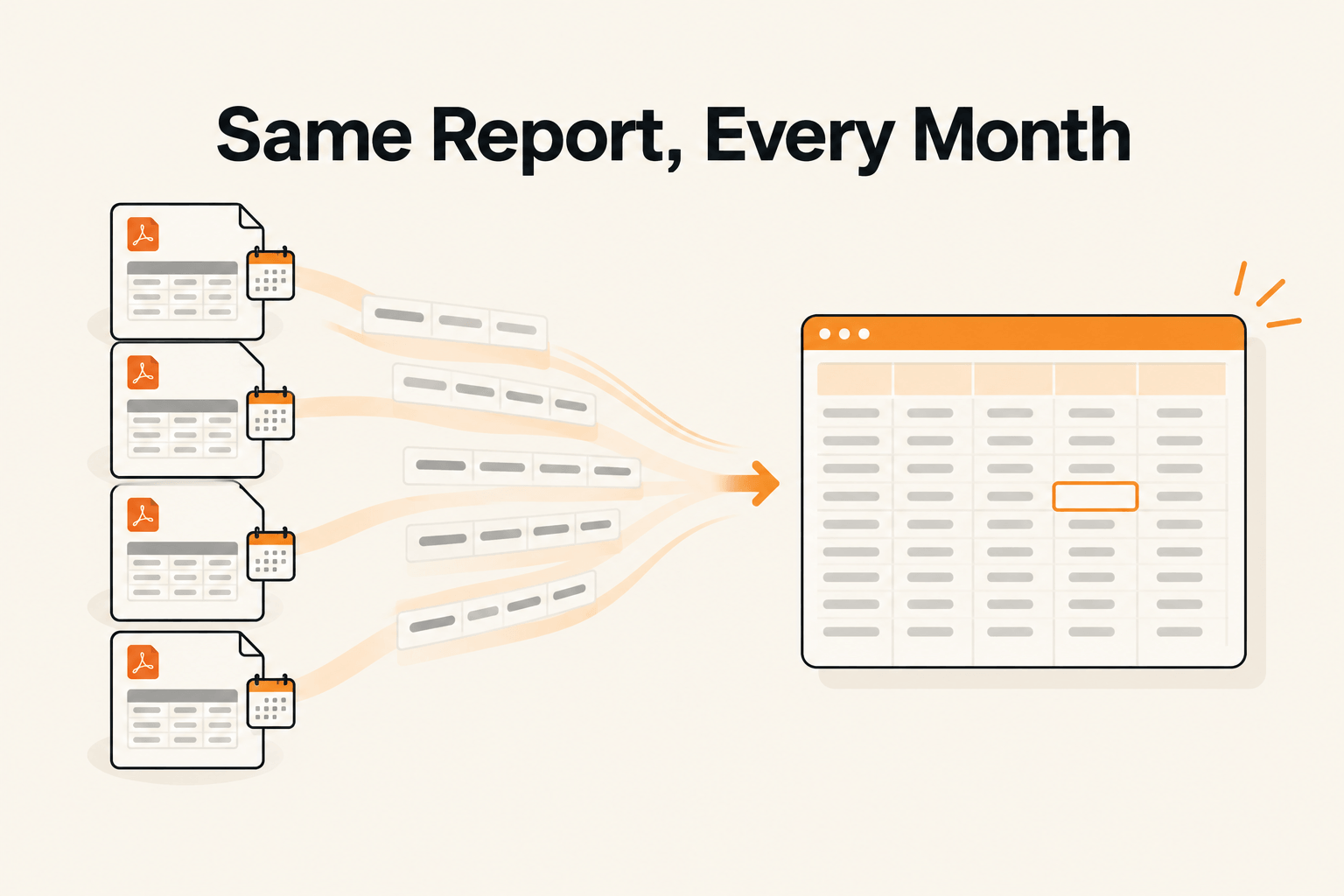
The report you retype every month
Every "how to convert PDF to Excel" guide online assumes the same thing: one file, one conversion, done. Drag it into a converter, export, move on.
That's not the job most operations people actually have.
The recurring version looks different. A supplier sends a stock report on the 1st. A payment processor drops a settlement statement every Friday. A logistics partner emails a shipment manifest at the end of each week - same sender, same rough layout, same columns, month after month.
Somewhere in the business, someone opens that PDF and retypes it into a spreadsheet. Every time it lands. Old-fashioned data entry, one row at a time, dressed up as "just a quick export."
A single file just needs to get from PDF to Excel once. A recurring report needs to get there reliably, on a schedule, without anyone remembering to do it.
Extracting text from one PDF is a five-minute task. Doing it correctly twelve or fifty-two times a year, for years, is an operations problem - and it keeps getting treated like a five-minute task anyway.
That mismatch is where the real cost hides.
Why "PDF to Excel" converters break on the second month
Generic PDF-to-Excel tools - the export button in your PDF reader, the free online converters - work by reading where text sits on the page. Text in this box goes in this column. It's geometry, not comprehension.
That works fine for a single, clean document. It falls apart the moment a report repeats, because "the same report" rarely stays pixel-identical:
- One extra line item this month and every row below it shifts. The converter still maps by position, so numbers land in the wrong column three rows down.
- A table that spills onto page two gets treated as two separate tables, or the header row prints again mid-sheet and gets read as data.
- A subtotal or merged cell in the middle of a table throws off column alignment for everything under it.
- A scanned copy one month, when every other month arrived as a clean digital PDF, and a layout-only tool has no OCR to fall back on.
Position-based tools don't know what they're looking at. They can't tell "invoice total" from "shipping cost" - they know column four, row twelve. When you extract text from a PDF this way, a slightly different page shape looks exactly like a different meaning.
And each run starts from scratch. There's no memory of last month's fix, so someone corrects the same misaligned column every time it happens.
What a day a month actually costs
Nobody puts this on a spreadsheet, which is exactly why it survives so long. Picture an ordinary version: a monthly supplier report lands, and someone spends the morning on data entry - forty or fifty line items, each figure checked twice, because a typo in a quantity column hurts more than the time it took to type.
Then add the cross-check against last month, the email to the supplier when a total doesn't reconcile, and the rebuild after someone pastes over a formula. Half a day easily becomes a full one.
| One recurring report | Four recurring reports | |
|---|---|---|
| Time per report | about a day | about a day each |
| Days per month | 1 | 4 |
| Days per year | about 12 (two and a half working weeks) | about 48 (close to ten working weeks) |
Most small back offices run this routine on more than one report: a supplier statement, a payment processor settlement, a carrier invoice, a distributor's sales report. The typing is just the visible part.
The harder cost sits around the task. The report that's always a few days late because it waits for whoever has time. The one person who knows this supplier "does it differently," and who becomes a bottleneck every time they're on leave.
Then there's the error that surfaces three weeks later at month-end close. A transposed figure finally throws off a reconciliation, and someone has to work backward through everything it fed into.
That's the real bill. It was never about the typing.
When it's worth automating (and when it isn't)
Not every recurring PDF deserves a workflow. A report that shows up twice a year, with six rows, feeding nothing but a folder nobody opens - just export it and move on.
The decision comes down to three questions, not one:
| Signal | Worth automating | Fine to do by hand |
|---|---|---|
| Frequency | Arrives on a schedule - weekly, monthly, per shipment | True one-off, or genuinely irregular |
| Volume | Dozens of line items, multiple pages, or several reports following the same pattern | A handful of fields, one page |
| Consequence of an error | Feeds a reconciliation, a payment, a customer-facing number, or another system | Read once, filed, never acted on again |
One "yes" alone rarely justifies it - a frequent but trivial report is still trivial. Two or three together are where the math flips.
A monthly statement with forty rows that feeds AP reconciliation is the classic case. The time cost compounds every month, and every mistake costs time twice: once to notice, once to trace.
There's a simpler gut check underneath all this. If you'd be annoyed doing the task again next month, automate it. If you'd barely remember it happened, don't bother.
What "set up once, runs every month" looks like
The shift is from "someone processes this file" to "this file processes itself, and someone looks only when something is genuinely uncertain." Here's how we approach it in Foxello:
- Describe the fields once. Supplier name, invoice date, quantity, unit price, line total - whatever this report contains, written in plain language. It's a one-time step, and every future report reuses it.
- Connect the source, not the file. Forward the report to the workflow's own inbox, or point it at the folder where it already lands. Every future report comes in through the same door, with nobody remembering to kick it off.
- Treat line items as a table. A recurring report is rarely a handful of key-value fields. It's a table, and we extract it as one table field you can review as a grid, rather than thirty loose values guessed by position. That's the direct answer to the shifting-rows problem from earlier.
- Review only what's uncertain. Every field gets its own confidence score. Fields above the threshold are confirmed automatically. If any field falls short, or a required one is missing, the document waits for a quick look - and the reviewer sees the confirmed fields already set aside, so they check only the few that were flagged.
- Get the same Excel shape every time. Send the output to a connected folder or pick it up from the Files screen, ready for whatever already reads it.
Nobody's pretending a human never looks at this report again. The human just stops retyping the ninety percent that never needed judgment.
Getting it running
None of this requires an implementation project. In practice it looks like:
- Create a workflow and describe the fields. Name it after the report ("Supplier X monthly statement") and list what to pull out. Creating the workflow takes about a minute; the field descriptions take as long as you'd spend explaining the report to a new colleague.
- Point it at where the report already arrives. If it comes by email, forward it to the workflow's inbox, and optionally restrict it to that supplier's address. If it lands in a cloud folder, connect that folder instead. Nothing changes about how the report reaches you.
- Set the review bar. Choose automatic if you trust it outright, or confidence-based if you want a glance at anything uncertain. Start cautious - you can raise the auto-confirm threshold yourself once a few months have gone by clean.
- Let the first couple of runs prove themselves. Check the output against what you'd have typed by hand. From then on, the report only needs attention when a field is genuinely uncertain.
- Choose where the Excel file goes. Push it to a connected folder, or download it from Files when you need it. Same layout every time, no re-templating by hand.
That's the whole setup. The report keeps arriving on its own schedule. It just stops needing someone to sit down and retype it.
Close
The internet has plenty of guides for converting a PDF to Excel once. Almost none of them deal with the report that keeps coming back, month after month, while the same person quietly retypes it.
Twelve of those files add up to weeks nobody planned to spend. Set the workflow up once, and the report goes back to being what it always should have been: data that simply arrives.
You can try this on your own recurring report with Foxello's free start - 10 free tokens, no credit card required.