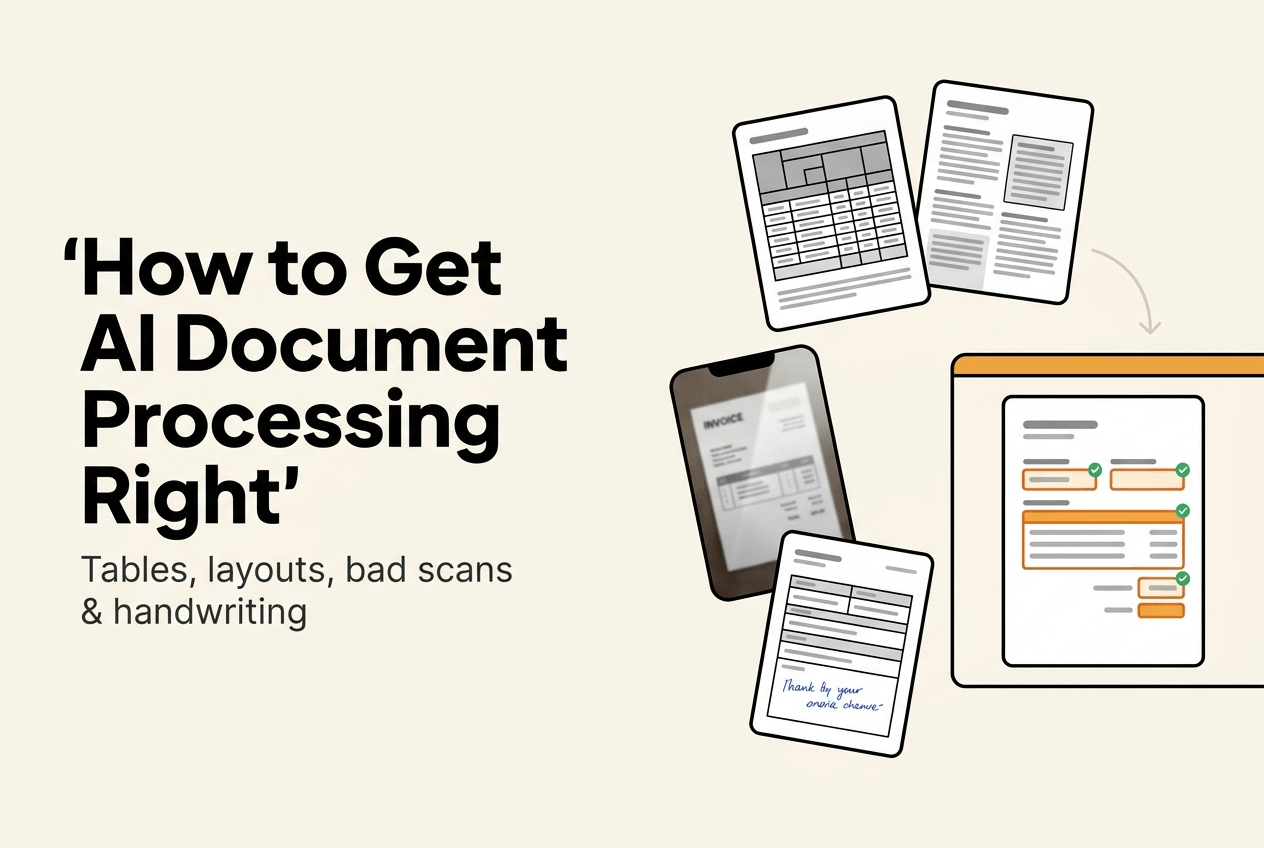
Most conversations about AI document processing start and end with one question: how accurate is it? That's the wrong place to start. Every extraction pipeline gets some documents wrong, including clean printed ones. What decides whether a workflow holds up in production is what happens on the documents that don't cooperate, and how quickly your team can deal with them.
Four document traits cause most of the trouble: tables that aren't simple grids, pages that aren't single-column, scans too degraded to read cleanly, and handwriting. Each one needs a slightly different answer. Some are handled in extraction itself. Others are handled by making sure the right fields land in front of a person, with the original document right next to them, before anything is confirmed.
What "resilient" means here
A resilient workflow isn't one that never fails. It's one where failure is contained and cheap to fix. A messy table doesn't quietly corrupt other fields on the same document. A blurry phone photo gets flagged instead of auto-confirmed. A new document type gets a few rounds of human review before it's trusted to run on its own. And the review itself takes seconds per field, not minutes per document.
Dense tables
Most tools handle a plain grid well: evenly spaced columns, one header row, no merged cells. Real tables are rarely that tidy. A pricing table with a header spanning three sub-columns, a line-item table that continues onto page four without repeating its header, a sub-total row that belongs to the group above it: this is where tools start to differ.
Keep the structure, don't flatten it
The common failure comes from flattening a table into plain text before extraction. The visual structure that told you which header a value belongs to gets thrown away, and the model has to guess from the text alone. We keep the spatial layout of the page through the pipeline and run table extraction as its own step, separate from the rest of the document. A model that can see a value sitting under a specific column header gets it right far more often than one reading a wall of numbers.
Multi-page tables
A long invoice split across several pages is a common case, and it trips up tools that read each page in isolation. The header appears once, and later pages get read as unlabeled data, or the header gets picked up again as if it were a new line item. When you evaluate any tool, this is one of the first things to test.
Practical takeaway
Test on the ugliest multi-page table you actually receive, not a clean single-page sample. If a vendor's demo only shows simple grids, that tells you something.
Multi-column layouts
A PDF doesn't store reading order. It stores text at positions on a page. A tool that reads everything top to bottom across the full width will take line one of column one, then line one of column two, then jump back, and produce text that reads like two paragraphs shuffled together.
Reconstructing reading order
We rebuild the page layout from the position of each text block, group content into columns, and read each column in order before moving to the next. On documents with clear, consistent columns, this turns output that would otherwise be scrambled into text that reads the way a person would read it.
Where it's not perfect
Layout reconstruction isn't magic, and it isn't right every time. It works well on consistent layouts. It gets harder on pages that mix conventions: floating text boxes that don't line up, a column width that changes halfway down the page, or a scan where the gap between columns is faint. On those, a block or two can end up in the wrong place.
Practical takeaway
For any new template with an unusual layout, check its first few documents closely. Once a template comes back in the right order consistently, you've earned the right to trust it.
Degraded scans and phone photos
Tables and columns are organization problems: the right information is on the page, it just needs to be read in the right order. A degraded scan is a different kind of problem. If a phone photo is blurry, glared, shot at an angle, or taken in poor light, the text may never have been captured clearly in the first place.
Wrong input, confident output
Extraction works from the text OCR produced, not from the image itself. If OCR reads an "8" as a "3" on a blurry photo, the extraction model has no way of knowing. As far as it can tell, the document says "3," and it extracts "3" faithfully. The model did its job correctly on input that was already wrong. That's why degraded input is the one case where better extraction alone can't save you, and where the review step does the heavy lifting.
Where Review Hub comes in
Several checks decide what reaches a person instead of being confirmed automatically:
- Per-field confidence. Each field gets its own score, so one shaky value gets flagged on its own instead of hiding behind nineteen good ones.
- Values that can't be traced back to the page. Every extracted value is checked against the text actually read from the document. If the model returns something that can't be found there, for example a "cleaned up" version of a garbled number, that field gets zero confidence and goes to review.
- Required fields. If a required field comes back empty because the scan was unreadable in that spot, the document goes to review no matter how well the rest scored.
When a field lands in Review Hub, the reviewer sees the extracted value highlighted directly on the original document image. A misread digit on a blurry photo becomes obvious the moment you see it next to the source. Fixing it means clicking the right words on the document or typing the correct value, then approving and moving to the next one.
Practical takeaway
Capture quality is still the biggest lever you control: a document scanned flat, in decent light, starts the whole pipeline from correct input. For workflows where low-quality photos are routine, keep the auto-confirm threshold high and mark the fields that matter most as required. That way, the documents most likely to carry a bad read are the ones most likely to get a second look.
Handwriting
Printed text on a clean scan is close to a solved problem. Handwriting isn't, anywhere. Block letters read more reliably than cursive, and both trail well behind print.
Why it behaves like a bad scan
Handwriting is a reading problem, not a layout problem. If a handwritten "7" gets read as a "1," no later step can recover the correct digit. Context helps at the margins: a model that knows it's reading a date can rule out values that aren't valid dates. But choosing between two plausible readings isn't the same as recovering something that was never clearly legible.
Let the reviewer read the original
This is where seeing the value on the source document matters most. A reviewer looking at the handwritten field itself, highlighted on the page, can confirm or correct it in seconds. That's faster and more reliable than re-reading the whole form from scratch.
Practical takeaway
Mark fields that are regularly filled in by hand as required, even if they'd otherwise be optional: signature dates, handwritten corrections, notes customers add to forms. Where handwriting is common on a document type, plan for review on those fields as a permanent part of the workflow.
Building the workflow
The sections above cover extraction. This one covers the setup around it, which is where most of the value comes from.
Use required fields deliberately
Required fields are the check that catches an empty result no matter how well everything else scored. Use them on exactly the cases above: handwritten values, fields on document types that often arrive as poor photos, and any amount where a wrong value is expensive. An extra flagged document costs a few seconds. A wrong total reaching your books costs a lot more.
Start with a high threshold
The auto-confirm threshold is the confidence a field needs before it's trusted without review. It's set per workflow, not per field. On a new workflow, start it high, so most documents go through review at first, including ones that would have been fine. That's how you learn where a specific document type tends to go wrong before you let it run on its own.
Lower it on evidence
The threshold doesn't change by itself. You lower it once you've seen a document type extract cleanly and consistently, and less goes to manual review from that point on. A workflow with a clean track record over a few weeks has earned a lower threshold. A document type you started processing yesterday hasn't.
Make review fast
Maximizing the value of AI document processing isn't only about how many documents skip review. It's also about how fast the ones that don't skip it get cleared. In Review Hub, reviewers can filter to just the fields that need attention, fix values by clicking on the document instead of retyping them, and move through the queue with a single keyboard shortcut. For teams, approving a document pulls the next one from a shared queue, so several people can work the same backlog without stepping on each other.
The four traits, at a glance
| Document trait | What handles it | What to do in your workflow |
|---|---|---|
| Dense or multi-page tables | Layout-preserving, dedicated table extraction | Test on your ugliest real multi-page table first |
| Multi-column layout | Reading-order reconstruction, strong on consistent layouts | Check the first documents of any new or unusual template |
| Degraded scans and phone photos | Review Hub: per-field confidence, source-matching, required fields | Improve capture where you can, keep the threshold high where you can't |
| Handwriting | Review Hub, with the value shown on the original page | Mark handwritten fields as required and plan for ongoing review |
Where to go from here
Getting AI document processing right isn't about finding a tool that promises 100%. Nothing does. It's about knowing which documents are likely to cause trouble, letting extraction handle what it can, and making sure the rest reaches a person, with the original page in front of them, before anything is confirmed.
Set up a workflow in about a minute and see which of your own documents actually need a second look.