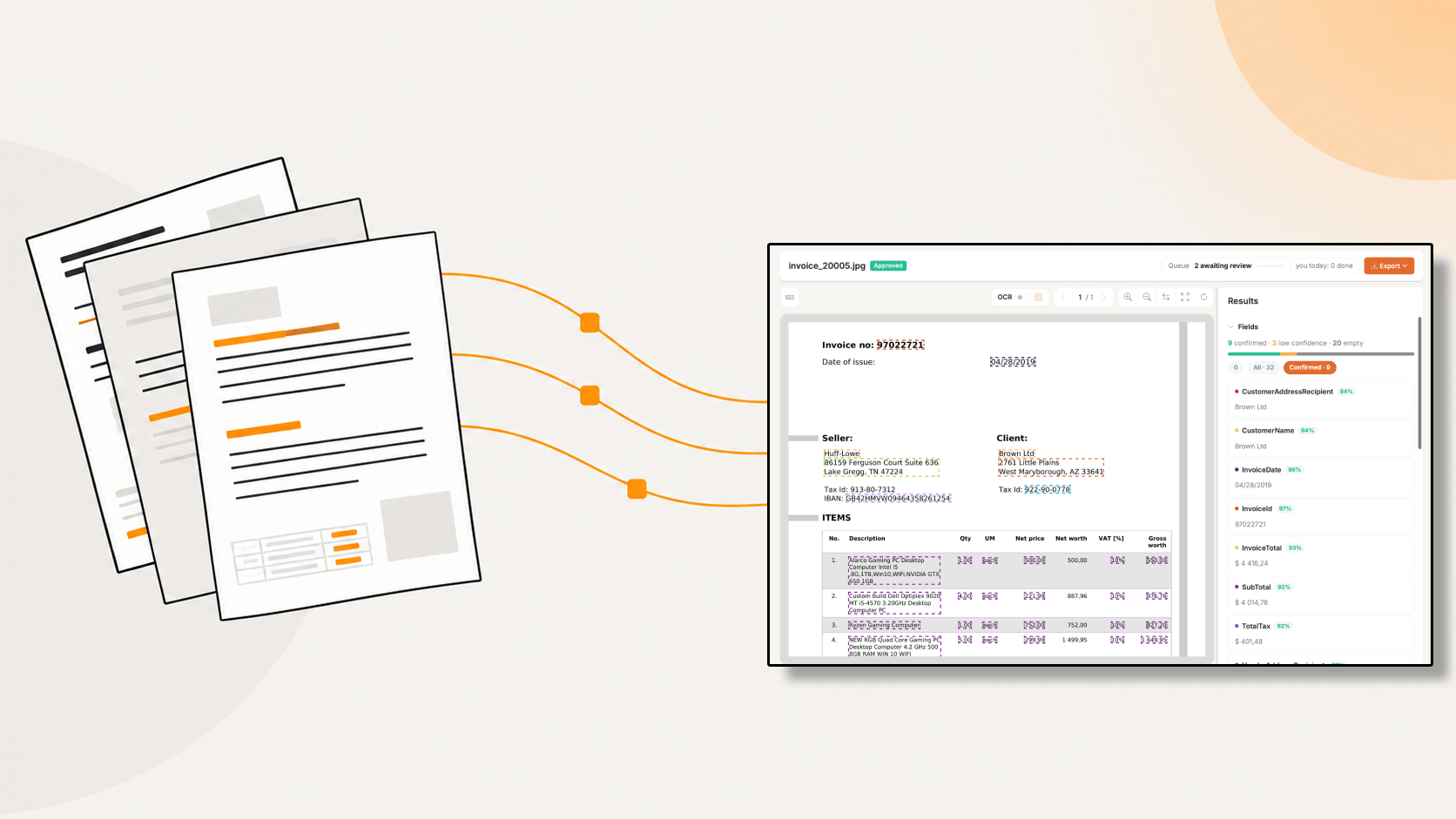
The re-keying tax
Every PDF that lands in your inbox carries a hidden price tag. Someone opens it, reads it, types what it says into another system, then checks their own typing. That is the job. Nobody lists it on a job description, but it eats real hours every week.
The finance world has already put numbers on this. Ardent Partners' 2025 survey of AP and finance professionals put the average cost of processing a single invoice at $9.40, with best-in-class organizations down at $2.78. Same document, same data on it. The gap is almost entirely how much of the work still passes through a person's hands.
Time tells the same story. Average invoice processing time sits around 9.2 days, and the industry average touchless processing rate is 32.6%, against 49.2% for best-in-class teams. Read that second number carefully. Even the leaders touch half their documents. The goal was never zero humans. The goal is that humans only look at the documents that actually need a decision.
Why this gets worse as you grow, not better
Manual entry scales in a straight line. Double the documents, double the hours. There is no efficiency curve, because typing does not get faster with volume.
That is the point where most teams do one of three things: hire, outsource, or let the backlog grow. All three cost money. Only one of them, automation, changes the slope of the line.
What this guide covers
What PDF extraction actually involves, where it reliably breaks, how to set it up in Foxello, and how to get the structured output into the tools your team already works in. No template building, no training datasets, no six-week implementation project.
What "extracting data from a PDF" actually involves
A PDF is a printing format, not a data format. It describes where marks go on a page. It does not know that the number in the top right corner is an invoice number, and it will never tell you.
That means two different problems hide behind the phrase "extract data from a PDF."
Problem one: can the machine read the characters?
Some PDFs carry a text layer. They were generated by software, so the characters are already inside the file and can be read directly.
Others are pictures. A scan, a phone photo of a delivery note, a fax that somehow still exists in 2026. To a computer these are just pixels until Optical Character Recognition turns them into characters. OCR quality decides everything downstream. Skewed pages, low contrast, stamps over text and handwriting all make it harder.
In Foxello this is the OCR step, and it is billed per page so you can see exactly what it costs.
Problem two: which characters mean what?
This is the part people underestimate. Reading the page gives you a wall of text. You need fields.
Turning "ACME Industrieteile GmbH, Invoice 2026510527, Due 30.04.2026, Total 56,28 EUR" into named values is extraction, and it is a separate job from OCR. Older approaches solved it with coordinates: draw a box, capture whatever sits inside it. That works until a supplier moves their logo.
Our approach is to have you describe each field in plain language once, when you build the workflow. "Supplier VAT number." "Net total before tax." "Line items with description, quantity and unit price." The model reads the document and finds them, wherever they sit on the page.
What you get out
Structured output, ready to move. Here is what a one page supplier invoice comes back as, trimmed for readability:
{
  "fields": [
    {
      "docType": "invoice",
      "fields": [
        {
          "attribute": "VendorName",
          "text": "ACME Industrieteile GmbH",
          "type": "string",
          "confidence": 0.941,
          "zone": { "x": 1100, "y": 198, "w": 398, "h": 76 }
        },
        {
          "attribute": "InvoiceId",
          "text": "2026510527",
          "type": "string",
          "confidence": 0.956
        },
        {
          "attribute": "InvoiceDate",
          "text": "30.04.2026",
          "type": "string",
          "value": "2026-04-30",
          "confidence": 0.957
        },
        {
          "attribute": "CustomerAddress",
          "text": "Musterstr. 8 79346 Beispielstadt Deutschland",
          "type": "string",
          "confidence": 0.915
        },
        {
          "attribute": "Items",
          "type": "string",
          "fields": [
            {
              "row": 1,
              "attribute": "ProductCode",
              "text": "KFR200025",
              "type": "string",
              "confidence": 0.94
            },
            {
              "row": 1,
              "attribute": "Description",
              "text": "Flachriemen 2000 x 1 x 25 mm Konfiguration: 1 Stück",
              "type": "string",
              "confidence": 0.299
            },
            {
              "row": 1,
              "attribute": "Quantity",
              "text": "1",
              "type": "string",
              "confidence": 0.947
            },
            {
              "row": 1,
              "attribute": "UnitPrice",
              "text": "47,29",
              "type": "string",
              "confidence": 0.943
            }
          ]
        },
        {
          "attribute": "TotalTax",
          "text": "8,99",
          "type": "string",
          "confidence": 0.95
        },
        {
          "attribute": "InvoiceTotal",
          "text": "56,28 €",
          "type": "string",
          "value": "56.28",
          "confidence": 0.956
        }
      ]
    }
  ],
  "stats": {
    "pageCount": 1,
    "avgConfidence": 0.9014,
    "completedAt": "2026-04-15 19:45:45 UTC"
  }
}
Four things in that output separate "we read your document" from "you can build on this."
text and value are not the same thing
text is what the page literally says. value, when it is present, is that same text reformatted - not a different data type, just a different shape. The date reads "30.04.2026" and comes back as 2026-04-30. The total reads "56,28 €" and comes back as 56.28, the currency stripped off. Not every field carries a value today - it shows up where a reformat is available, and text is always there as the fallback.
Your ERP does not want to parse ten different date formats and currency notations across two hundred suppliers.
Line items keep their row structure
Table fields come back as an array with each value tagged by row. Product code, description, quantity and unit price stay attached to the line they belong to, rather than arriving as four disconnected lists you have to reassemble.
Every field carries its own confidence
Look at the description field: 0.299. Everything else on that invoice sits above 0.9. One field needs a human, and it is the one with a wrapped, multi line description, exactly as you would expect.
That is the whole argument for confidence scoring. Without it, a 0.299 field looks identical to a 0.998 field, so you either trust everything or check everything. Neither is a business process.
Zones tie values back to the page
Each field records where it was found. In the Review Hub, clicking a field highlights that exact spot on the document, so verifying takes about a second instead of a hunt across the page.
The full response also carries word level detail under each field, with per word confidence and coordinates. Useful if you are building something custom, noise if you are not, so it is left out above.
Where PDF extraction actually breaks
Most extraction tools demo beautifully. They are all working from a clean invoice with a predictable layout. Your real document pile is nastier than the demo, so here is where things fall over.
Layout drift across suppliers
You do not process "invoices." You process invoices from 200 different companies, each with their own layout, their own word for "total," and their own habit of redesigning the template every January.
Coordinate based and template based systems break here, quietly. The box that captured the invoice number now captures the page number, and nothing errors out. You find out at month end.
This is the strongest argument for description based extraction. A field defined as "the supplier's VAT registration number" survives a redesign. A field defined as "the text at x=412, y=88" does not.
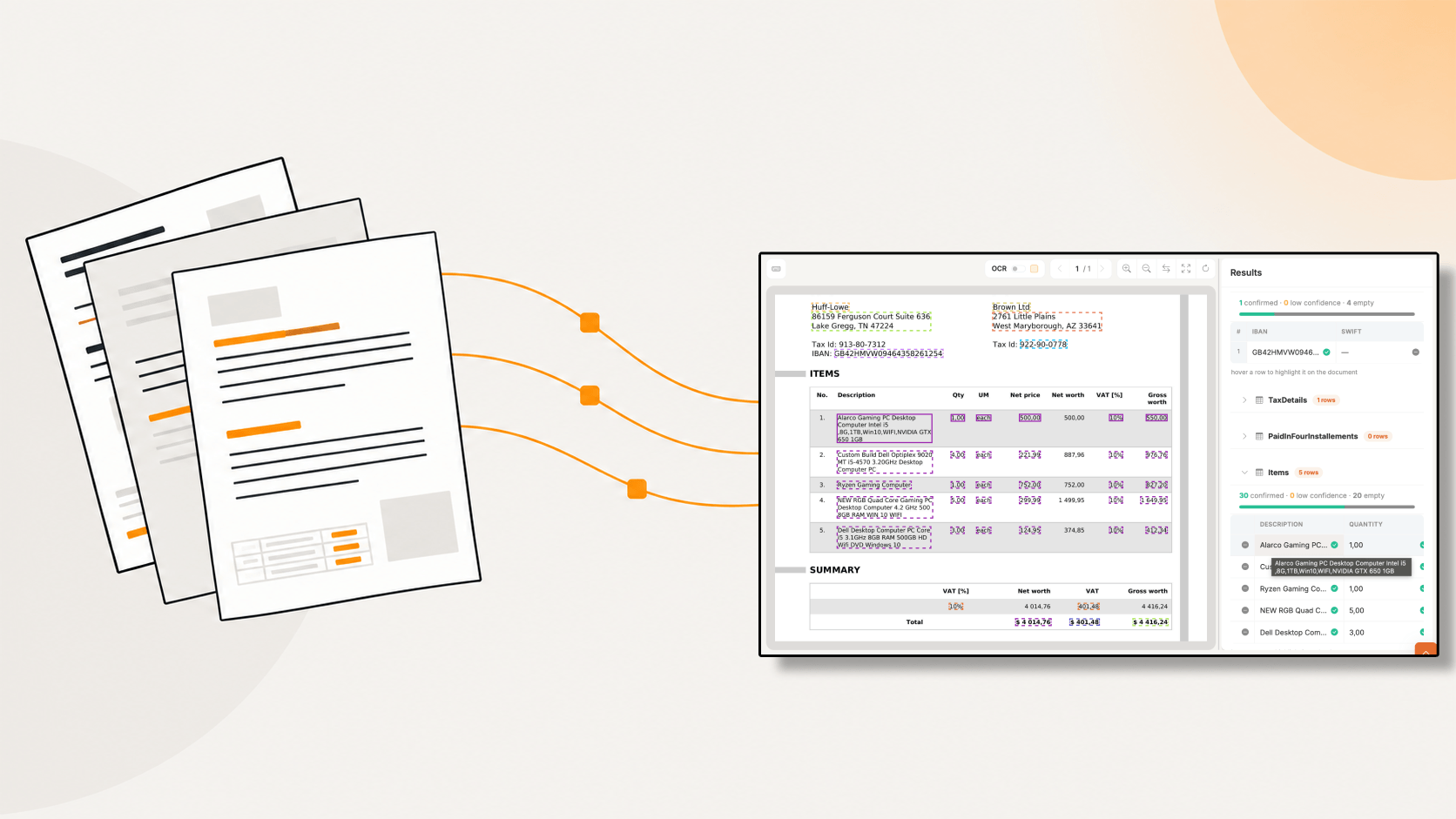
Line items and tables
Header fields are the easy part. Tables are where extraction earns its money, and where most tools get vague.
Multi page tables that continue across a page break. Rows with wrapped descriptions that look like two rows. Subtotals that are not line items. Columns that shift when a supplier adds a discount field.
Foxello handles table type fields as their own grid in the file view, so rows can be added, edited or deleted individually during review rather than forcing you to redo the whole document.
Scans, photos and handwriting
Delivery notes photographed in a warehouse. Forms filled in by hand with a checkbox ticked slightly outside the box. Documents scanned at an angle by someone in a hurry.
These work, but they are where accuracy varies most, and where confidence scoring matters most. Treat a document class with heavy handwriting as a review candidate first and a straight through candidate later, once you have the track record to justify it.
Volume spikes
Month end is not the average. Your pipeline needs to absorb a Monday morning that carries three days of weekend email without a human queueing files by hand.
Ardent Partners put the average invoice exception rate at 14% in 2025, with top performers at 9% and teams without automation at 22%. That exception slice is the real workload. Automation does not remove it, it isolates it, so the other 80% or more moves without anyone opening it.
Template maintenance debt
This one is invisible until you are two years in. Every template, rule and regex someone wrote is a small permanent liability. It needs updating whenever a supplier changes something, and the person who wrote it has usually left.
The honest question to ask any extraction setup is not "does it work today," it is "who maintains this in eighteen months, and what does that cost."
How it works in Foxello, end to end
Five steps, and only the first two need a human.
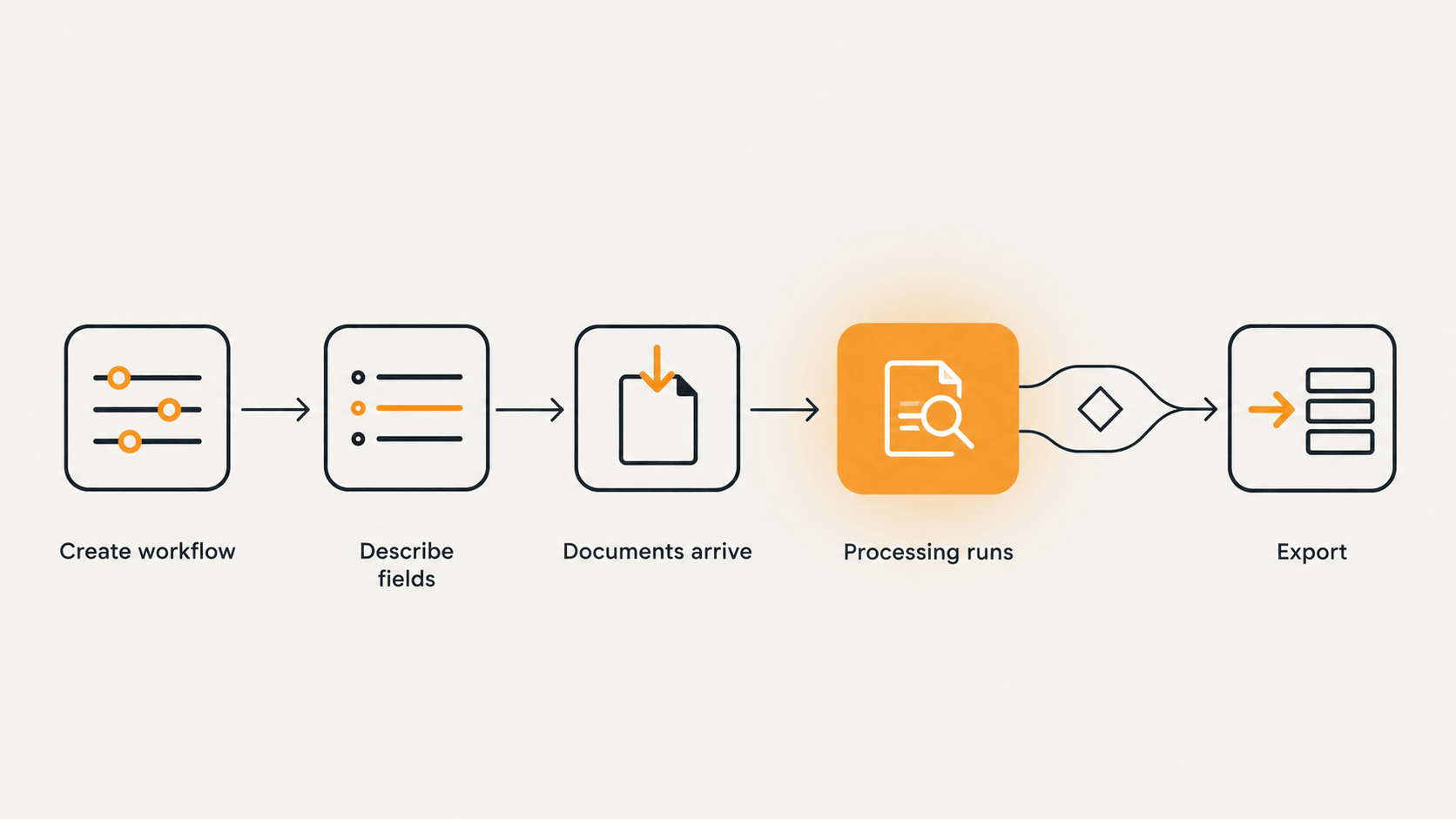
1. Create the workflow
A name, a model type, a review setting. That is the whole form. A workflow is the recipe for one document class, so most teams start with one: supplier invoices, or delivery notes, or claim forms.
2. Describe your fields, once
This is the setup work, and it is done once per workflow rather than once per document. You write what you want in plain language: "supplier VAT number," "net total before tax," "line items with product code, quantity and unit price."
No sample datasets, no training run, no drawing boxes on a page. Instant workflows skip this entirely, because the fields are already defined for common document types.
3. Documents arrive
Pick how files reach us in the workflow's Import tab:
| Channel | Good for | Notes |
|---|---|---|
| Web upload | Getting started, ad hoc batches | 5MB per file |
| Suppliers who send PDFs by mail | Each workflow gets its own address, with optional sender and attachment type filters | |
| Google Drive, OneDrive, Dropbox, Box | Teams already working in a shared folder | Scheduled sync, duplicates skipped automatically |
| FTP / SFTP | Scanners and legacy systems | Up to 100MB per file, 50 files per sync |
| API, Zapier, n8n | Your own app or automation stack | 5MB direct upload, or send a URL and we fetch up to 100MB |
Email import, cloud folders, API, Zapier and n8n are on Growth and Scale. Web upload works on every plan.
4. Processing runs on its own
Conversion, OCR, extraction. Nobody presses a button. Files show their status in the Files list, and scheduled imports show a last sync indicator so you can see at a glance whether the overnight batch actually landed.
5. Review only if the workflow asks for it
Automatic review pushes clean documents straight to export. Manual and confidence based review hold files for a person. The next section covers how to tune that so the number of held files drops over time.
6. Export
JSON, CSV or Excel, pushed automatically to your configured destination or downloaded from the Files screen. Webhooks post to an HTTPS endpoint you control, with field mapping if your destination expects different key names. Excel is available from Growth upward.
Choosing your extraction mode
This is the one setup decision worth thinking about for more than ten seconds.
| Mode | How it works | Best for | Cost per page |
|---|---|---|---|
| Instinct | You describe the fields, no examples needed | New document types, varied layouts, fast starts | 1 token (Flash), 2 tokens (Deep) |
| Mastery | You describe the fields and guide with an example | High volume, repeating formats where consistency matters | 1 token (Flash), 2 tokens (Deep) |
| Instant | Pretrained models for standard document types | Invoices, W-2s and other common categories, minimal setup | 1 token plus 1 OCR page |
| OCR | Text extraction only, no field extraction | Search, archiving, feeding your own downstream logic | OCR pages only, no tokens |
| Review | You define fields, your team types the values | Documents too unusual or sensitive to automate yet | No tokens, no automatic extraction |
Practical advice: start on Instinct. It gets you a working extraction the same afternoon. Move a workflow to Mastery once you have seen enough documents to know what "normal" looks like for that supplier mix, and switch to Instant where a standard document type already has a model waiting.
Flash versus Deep is a straight trade. Flash costs one token per page and handles clean, well structured documents. Deep costs two and earns it on dense pages, tangled tables and poor scans.
What it costs to try
Seven day trial on Starter, Growth or Scale, no card required, 10 model tokens and 30 OCR pages. Paid plans start at €14.99 per month. Monthly allowances reset every 30 days from first paid activation, and prepaid token packs do not expire with the month.
Review only the exceptions
Go back to that extraction result. One field came back at 0.299 confidence. Everything else sat above 0.9.
That gap is the entire design. A person needs to look at one wrapped line item description. Nobody needs to re-read the invoice number, the total, the VAT amount or the supplier address, because the system already knows how sure it is about each of them.
This is what separates document automation from faster typing. Without per field confidence you have two options: trust the output blindly, or check all of it. Most teams check all of it, which is why their "automated" process still costs them an hour a day.
How it works in practice
Set the workflow to confidence based review. Clean documents go straight to export. Documents with at least one uncertain field get held for a person.
In the file view, extracted fields split into two groups: Needs review and Confirmed. A field auto-confirms at or above your confidence threshold, which starts at 90 and can be set higher or lower, or a reviewer can confirm it manually. The reviewer opens a held document and sees exactly which values are in question, rather than a wall of data to proofread.
Click a field and the matching spot on the document lights up, because every value carries its page coordinates. Verify, correct if needed, move on. Line items appear as their own grid below the document, so a single wrong row gets fixed without touching the rest of the table.
 AI
AI
Designed for people doing this all day
If your team reviews fifty documents in a morning, mouse travel is the bottleneck. The Review Hub is fully keyboard operable: navigate fields, select words or zones on the page, approve and jump to the next file with Cmd or Ctrl plus Enter. Table cells have their own navigation for moving between cells and adding rows.
Approve and next saves the file and immediately opens the next one waiting in the same workflow queue. No going back to a list, no re-finding your place. Skip moves on without a decision, and reject or return to queue are there when something needs a second opinion.
The header shows the queue depth and how many files that reviewer has approved today. Small thing, but it makes the work visible to the person doing it.
One detail that confuses people in the Files list: a file showing Review status means someone currently has it open. If they navigate away or their session expires, it drops back to Rejected status (or Approved, if they had finished) rather than sitting locked forever - so it's easy to reopen, not stuck.
Making review shrink over time
The number worth tracking is your touch rate: what percentage of documents needed a human. Track it per workflow, per week.
When a field keeps landing in review, the fix is the field description. That is the honest answer. A field described as "description" will do worse than one described as "the full product description for this line, including any configuration notes printed underneath it." The model is reading your wording as instructions, so vague wording produces vague results.
This is why the review queue is useful beyond the documents themselves. It shows you which of your descriptions are underspecified. A field that is confidently right 400 times is telling you that description works. A field that keeps coming back at 0.3 is telling you to go and rewrite it.
Two settings shape how much lands in the queue. The confidence threshold starts at 90 and you can set it to whatever suits the document class, applied across the workflow. Required fields cover the other case: mark a field required and a document missing it gets flagged for review, however confident everything else looked. Use that for values you cannot afford to have quietly absent, like an invoice total or a PO number.
The goal for a mature workflow is straightforward: a reviewer opens the documents that genuinely need judgement, and never sees the rest.
Your first workflow, in about 30 minutes
Nothing here needs an implementation project or a call with anyone.
Pick one document class. Not "our documents." One. Supplier invoices, or delivery notes, or claim forms. The narrower the class, the faster you get a result you can judge.
Grab ten real files. Real means messy: include the supplier who sends photos, the one who scans at an angle, the one with four pages of line items. Ten clean invoices will tell you nothing useful.
Create the workflow on Instinct, with manual review on. Review everything on day one. You are measuring, not saving time yet.
Describe your fields in plain language. Start with the eight or ten values that actually get typed into another system today. Resist listing every field on the page, because fields you never use still cost review attention.
Upload the ten files and read the output. Not just the values. Look at the confidence numbers. Which fields sit above 0.9 every time? Which one is consistently shaky?
Rewrite the weak descriptions. Any field that came back shaky across several documents is a wording problem, not a model problem. Make the description more specific about what that value is and where it lives on the page, then run the same ten files again and compare. Mark the values you cannot afford to be missing as required. Then connect a real import channel and switch the workflow to confidence based review.
That is the loop. Add the second document class once the first one runs itself.
What to measure, and what to ignore
Two numbers matter. Touch rate: the percentage of documents a human opened. Cycle time: how long from document arriving to data landing in your system.
Ignore raw accuracy percentages, yours or anyone's, because they are unfalsifiable marketing. A vendor claiming 99% accuracy is quoting a number from documents that are not yours. Your own touch rate on your own document mix is the only accuracy figure that pays anybody's salary.
For context on where that number can go, Ardent Partners' 2025 benchmarking put the industry average touchless invoice processing rate at 32.6%, with best-in-class teams at 49.2%. Half of the leaders' documents still involve a person. Anyone promising you zero is selling a fantasy.
Start with ten documents
If your team is still re-keying PDFs, you already know what it costs. The question is not whether extraction works, it is whether you can get it running before the next month end.
Seven day trial on Starter, Growth or Scale. No credit card, 10 model tokens and 30 OCR pages included, paid plans from €14.99 per month.
Upload ten of your worst documents. Not your best ones. The output will tell you more in twenty minutes than any demo will.