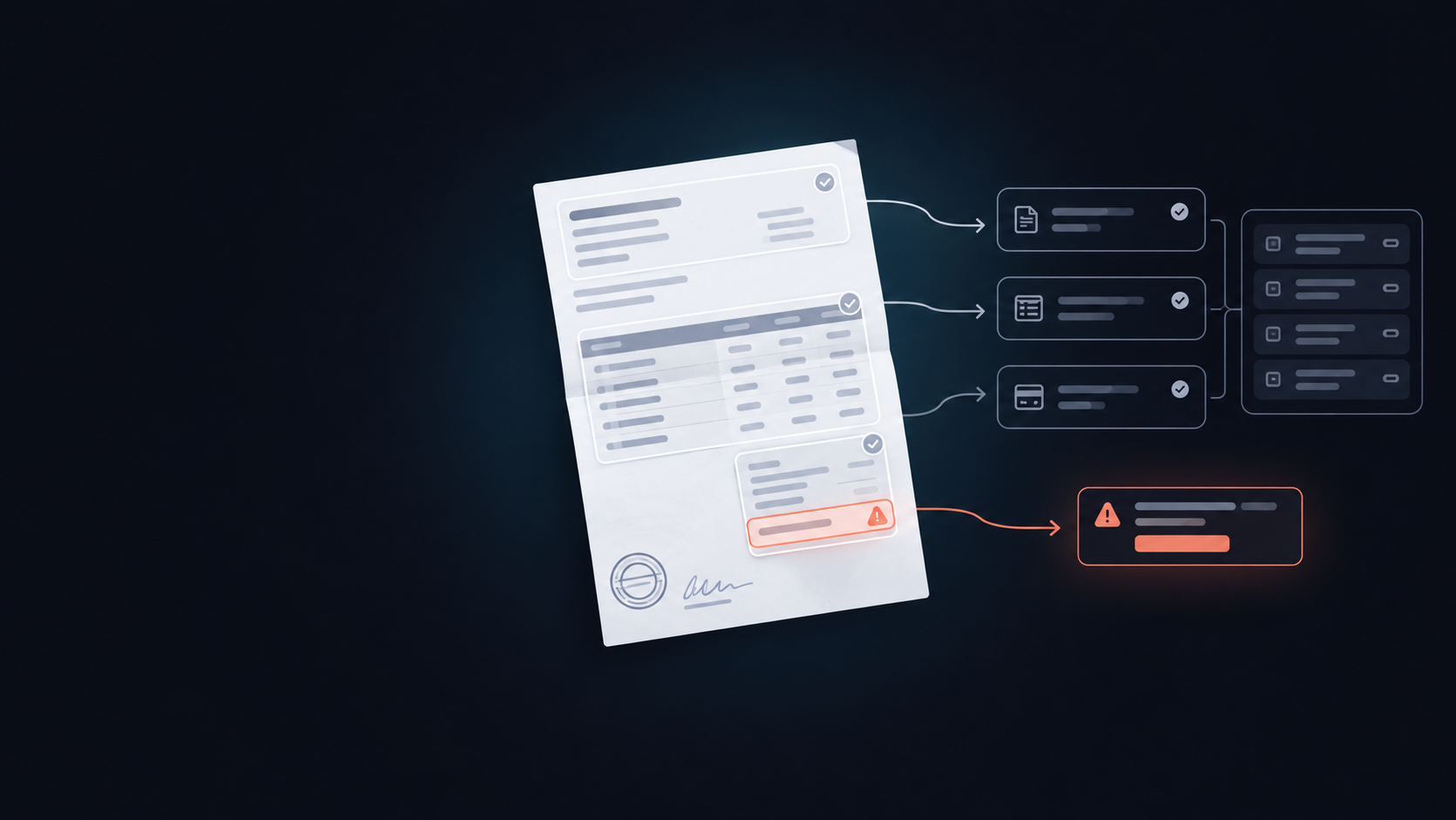
Every invoice extraction demo looks the same. A clean PDF goes in, a tidy table comes out, and everyone nods.
Then Monday happens. One supplier sends a phone photo of a crumpled invoice. Another switched accounting software over the weekend, and the layout moved. A third sends a credit note, and your system books it as a charge.
The demo wasn't lying. It just tested the easy part.
What "reading" an invoice really means
When people say software "reads" an invoice, they usually picture one step: the text gets pulled off the page. In practice, reading is three separate jobs.
- Seeing. Turning pixels into characters. This is what OCR does, and on a clean document it does it well.
- Understanding. Knowing that "12.450,00" next to "Gesamtbetrag" is the total. Knowing that a description wrapping onto a second row is still one item. Knowing that a table continuing on page three belongs to the table on page two.
- Doubting. Knowing when a value might be wrong, and saying so before it lands in your books.
Most tools do the first job very well and the second one decently. The third one they quietly skip. That third job is where the expensive mistakes live: the wrong amount paid, the line item that vanished, the VAT that doesn't reconcile at quarter end.
What this guide covers
We'll walk through what happens between "upload" and "structured data," and where OCR on its own runs out of road. We'll cover the failure points that rarely show up in a sales demo. At the end, there's a short checklist for testing any invoice scanning software against your own real documents, not the vendor's best ones.
No jargon required. If you process invoices for a living, you already know most of these problems. This is about why they happen.
From upload to data: what actually happens in between
To you, it looks like one step: drop in a file, get structured data back. Behind the scenes, a decent invoice extraction pipeline runs through six stages. Each one can fail on its own, and a failure early on gets worse at every stage after it.
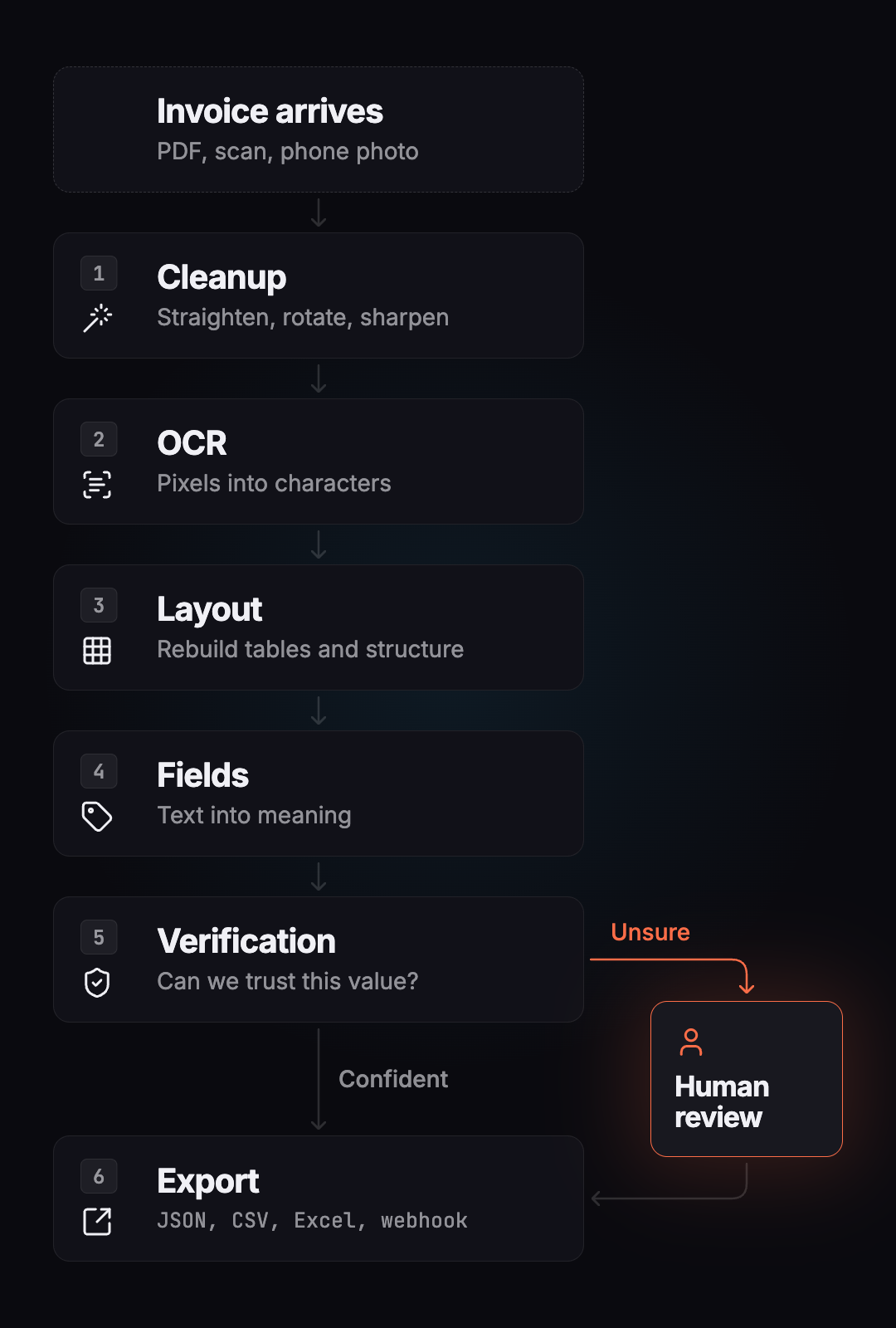
1. Cleanup
Invoices arrive as born-digital PDFs, office scans, email attachments squashed to save space, and photos taken on a warehouse floor. Before anything gets read, the image needs to face the right way, sit straight, and have enough contrast to tell a 6 from an 8. Skip this, and every later stage works from a blurry copy.
2. OCR: turning pixels into characters
This is the part most people mean by "invoice scanning software." OCR finds text on the page and converts it into characters, along with where each word sits. On a clean document, modern OCR is very good. Its job, though, ends at characters. It has no idea whether "30" is a quantity, a due date, or a page number.
3. Layout: rebuilding the page's structure
Now the system works out how the page is organised. Which block is the supplier address? Where does the line-item table start and end? Which words belong to the same row? Invoices say as much through position as through text. A number only means "unit price" because of the column it sits in.
4. Field understanding: from text to data
With the structure in place, the system maps content to the fields you care about: supplier, invoice number, dates, VAT number, line items, net, VAT, and gross totals. This is where an AI invoice reader earns its keep. It recognises "Invoice No.", "Rechnungsnummer" and "Facture n°" as the same field without anyone building a rule for each.
5. Verification: should we trust this?
Every extracted value gets checked before it moves on. Can it be traced back to text that's actually on the page? Is a required field missing? Values the system is confident about go straight through. Anything shaky goes to a person.
6. Export
Clean data leaves in a format your other systems can use: JSON, CSV, or Excel. From there it's pushed to your accounting software, an automation tool, or a webhook.
Why the order matters
A skewed scan produces OCR typos. OCR typos confuse the layout. A confused layout puts the right numbers in the wrong fields. That's why "the AI got it wrong" often traces back two or three stages earlier than the step that looks broken.
Where OCR alone falls short
OCR is a brilliant transcriptionist and a terrible accountant. It can copy every word on the page and still have no idea what any of them mean.
Hand an OCR engine an invoice and you get back a stream of text with coordinates. "INV-2291." "14/10/2026." "1.250,00." "Net 30." Every character can be right, and you still can't post a single line to your books.
Characters are not data
The gap shows up the moment you ask a question the page answers through context rather than text.
- Is "14/10/2026" the invoice date, the delivery date, or the due date?
- Is "1.250,00" one thousand two hundred fifty euros, or one euro twenty-five with a stray separator?
- Is "30" a quantity, a payment term, or a page count?
A person answers these at a glance, from labels, position, and experience. OCR doesn't answer them at all. That's not a flaw in OCR. Understanding the page was never its job.
Why the top of the invoice is easy and the middle is hard
Not all fields are equally hard. The difference comes down to how much structure a field depends on.
| Part of the invoice | Examples | Why it's hard (or not) |
|---|---|---|
| Header | Supplier name, invoice number, date | Usually labelled, near the top, one value each. Easy. |
| Totals block | Net, VAT, gross | Labelled and grouped, but multiple amounts sit side by side. Medium. |
| Payment details | IBAN, payment terms, due date | Often in the footer or small print, and sometimes missing. Medium. |
| Line items | Description, quantity, unit price, VAT rate, line total | Depends entirely on reading a table correctly: rows, columns, wraps, page breaks. Hard. |
This is why many older tools quietly settle for the header and totals. They capture who sent the invoice and how much it's for, and leave the line items for someone to type in. You get "we spent €4,800 with this supplier" but not what you actually bought, which makes spend analysis and PO matching guesswork.
The accuracy number that actually matters
Vendors love quoting character accuracy, meaning how many letters the OCR got right. It's the wrong number. One wrong digit in a total is a tiny character error and a 100% wrong field.
What matters is field-level accuracy: how often a whole value, like the invoice total or a line's unit price, comes out exactly right. That number is always lower than character accuracy, and it decides whether an invoice goes straight through or lands on someone's desk.
The next section covers what pushes it down in real life.
The failure points nobody demos
Sales demos use clean, born-digital PDFs from a single well-behaved supplier. Your AP inbox doesn't look like that. These five problems account for most of the invoices that end up being retyped by hand.
1. Layouts that change without warning
No two suppliers design their invoices alike. One puts payment terms in the header, another hides them in the footer, and a third leaves them out entirely.
The worse problem is that layouts change over time. A supplier rebrands, moves to new accounting software, or adds a line to their address block. The invoice looks the same to a person. To a system that learned where things used to be, it's a different document.
The symptom is an invoice that processed cleanly for months and suddenly comes back with blank fields. Nothing is wrong with the document. It just moved.
2. Line-item tables that don't behave like tables
Neat tables with gridlines and one row per item are the easy case. Real invoices give you:
- Wrapped descriptions, where one item spills onto two or three lines and gets read as several items
- Borderless tables, where columns are implied only by spacing
- Tables that run across pages, with headers repeated on each page that get read as extra rows
- Sub-rows, such as batch numbers, serial numbers, or discounts tucked under the item they belong to
- Duplicate copies, where an "original" and a "copy" in one PDF double every line
Each one produces a row count that's wrong, and that is the hardest kind of error to spot. The total might still add up while the lines underneath don't.
3. Handwriting, stamps, and overlays
Paper invoices collect marks on their way through a business. A handwritten PO number. An approval initial next to the total. A "RECEIVED" stamp across the date, or a "PAID" watermark over the amount.
Standard OCR is tuned for printed text, so these marks are either misread or ignored. The handwritten field is often the one that matters most, like the PO number that links the invoice to an order. Without it, the match fails and someone has to go looking.
4. European formats
For EU businesses this is a daily issue that rarely comes up in demos.
- Numbers: "1.250,00" in Germany and "1,250.00" in the UK are the same amount. Read the separators the wrong way round and €1,250 becomes €1.25, or the reverse.
- Dates: "03/04/2026" means 3 April in most of Europe and March 4 in the US.
- Labels: "Rechnungsnummer," "Numéro de facture," "Fattura n." and "Invoice No." are all the same field.
- VAT: multiple rates on one invoice, reverse-charge notes, and supplier VAT numbers in different formats.
A system that guesses formats instead of reading context gets these wrong silently. The output looks valid, and nobody notices until reconciliation.
5. Credit notes that look like invoices
A credit note has the same layout as an invoice from the same supplier. Its total is negative, it points back to the original invoice number, and there's often a short note explaining the refund.
Tools built for ordinary invoices tend either to reject credit notes or to read them as regular invoices with a positive total. In the second case you pay the supplier instead of the other way round. It's one of the costliest extraction errors, and it's easy to miss because nothing looks broken.
The common thread
None of these are rare edge cases. They're what a normal week in accounts payable looks like. A tool that can't handle them doesn't remove manual work. It moves the manual work to a different stage, where it's harder to see.
Why templates break (and when they're still fine)
For years, the standard answer to messy invoices was templates. You tell the software exactly where each field sits on a given supplier's invoice: invoice number in this box, total in that box, line items between these two lines. Then it reads those spots every time.
It works, until you look at what it costs to keep it working.
The template tax
Each template covers one supplier's layout. Fifty suppliers means fifty templates, and new suppliers keep arriving. Each new supplier's first invoices get typed in by hand while someone builds its template.
That's only the setup. The maintenance is the part that wears teams down:
- A supplier updates its layout, the template misses, and fields come back empty or wrong.
- Someone has to notice the breakage, which usually happens only after bad data has already gone into the books.
- Someone then fixes the template, re-runs the affected invoices, and hopes nothing else moved.
The biggest suppliers by spend tend to be the stable ones. The long tail of small suppliers, each sending a few invoices a month, is where layouts vary the most. That's where templates are least likely to exist and most likely to break.
What changes when software reads for meaning
An AI invoice reader doesn't need to know where the total sits. It needs to know what a total is. It finds the field by label, context, and structure, the same way a person does when they open an invoice from a supplier they've never seen.
| Template-based | Reads for meaning | |
|---|---|---|
| New supplier | Build a template first | Works from the first invoice |
| Supplier changes layout | Template breaks | Usually unaffected |
| Setup effort | Grows with every supplier | Define your fields once |
| Line items | Often skipped or fragile | Read as a table, row by row |
| Best fit | Few suppliers, fixed formats | Many suppliers, formats you don't control |
When templates are still the right call
To be fair to templates: if you process a very high volume of one document from one source, and that layout never changes, a template-based tool can be cheaper and perfectly reliable. A single carrier's statements or one internal form printed by your own system are good examples.
That isn't the situation most AP teams are in. Most deal with dozens or hundreds of suppliers, none of whom will format their invoices around your software. For them, the question isn't whether templates will break. It's how often, and who fixes them.
Reading for meaning solves the setup and drift problems. It doesn't make extraction perfect, though, and no honest tool claims it does. The next section covers what separates a good invoice extraction tool from a risky one: knowing when it's wrong.
The part most tools skip: knowing when they're wrong
Every extraction tool makes mistakes. The one you should worry about is the tool that makes them confidently.
A blank field is annoying, but you can see it. The real risk is a wrong value that looks right: a total with two digits swapped, a date read in US order, a credit note booked as a charge. It passes straight through to your accounting system, and nobody finds it until reconciliation. By then it costs far more to fix.
The way out isn't a tool that never errs. It's a tool that can tell you which values to trust and which ones need a second look.
Confidence per field, not per document
A single "this invoice is 94% accurate" score tells you almost nothing. Which 6% is wrong? The supplier name, or the amount you're about to pay?
Foxello scores every field on its own. The invoice number, the date, the VAT total and each line-item value each get their own confidence. A document can have forty fields extracted cleanly and one that's shaky, and you'll see exactly which one.
Every value has to trace back to the page
When Foxello extracts a value, it checks that the value actually appears in the document's text. If a number can't be matched back to the page, it isn't trusted, however plausible it looks. That catches the worst kind of AI error: a value the model produced that doesn't exist on the page.
Behind the scenes, extraction also works from a layout-aware reconstruction of the page. Tables stay tables, rows stay rows, and a line-item table that runs across several pages is read as one table rather than several broken pieces.
Bad scans lower the confidence score
Some invoices will never read cleanly: a faded fax, a crumpled photo, a stamp sitting right on the total. No software can reliably read what isn't legible. So Foxello doesn't pretend to. When the OCR is unsure about the text, that doubt carries through to every field built from it. A blurry total gets a low confidence score and goes to review. It doesn't get guessed and exported.
Review the exceptions, not everything
Confidence scores are only useful if they decide what happens next. In Foxello you choose how each workflow handles review:
- Automatic: everything goes straight through. This suits trusted, low-risk documents.
- Manual: every invoice gets a human check before export.
- Confidence-based: fields at or above your threshold confirm automatically, and anything below it sends the invoice to review. The default threshold is 90, and you can set it higher or lower for each workflow.
You can also mark fields as required. If a required field, such as the invoice number or the total, comes back empty, the invoice goes to review rather than slipping through with a gap.
What review actually looks like
When an invoice lands in the Review Hub, your team doesn't retype it. The fields are split into "Needs review" and "Confirmed," so the reviewer's eye goes straight to the few that matter. They can click the right value on the document itself to correct a field. Line items appear as their own grid, where rows can be fixed, added or removed. Approve, and the next invoice in the queue opens.
For an SMB, that means checking two fields instead of retyping twenty. For a BPO team, reviewers stop processing invoices from start to finish and start validating flagged fields, which is a much faster job.
Trust you can build up over time
Start cautious. Review more than you need to, and watch where the confidence scores prove right. As your team builds a track record with a supplier mix, you can raise or lower the threshold based on what you've seen, not what a vendor promised.
All of this runs in the EU, and your documents are never used to train models. They're processed, delivered, and kept only as long as your retention settings say.
How to test an AI invoice reader before you buy
Every tool looks good on its own sample invoices. The only test that counts is yours. Set aside an hour and run a realistic mix of your documents through it before you commit.
Build your test pack
Pick about 20 invoices that reflect a normal week, not just the best of it:
- Clean, born-digital PDFs from your regular suppliers
- A multi-page invoice with a long line-item table
- Invoices from suppliers you've never set up anywhere
- A credit note
- Invoices in two or three languages, with European number and date formats
- A few genuinely bad ones: phone photos, faint scans, stamps over key fields
Include the bad ones to see how the tool behaves when it can't read something, not whether it can work miracles.
What to check
| Test | What good looks like |
|---|---|
| Clean invoices | Straight through, with little or nothing to review |
| Totals and VAT | Exactly right, not "close". Check every digit and separator. |
| Line items | Row count matches the invoice, and multi-page tables come out as one table |
| New suppliers | Works from the first invoice, with no template to build |
| European formats | 1.250,00 reads as one thousand two hundred fifty, and 03/04 reads as 3 April |
| Unreadable invoices | Flagged for review, not exported with guessed values |
| Correction | Fixing a flagged value takes seconds, not a retype |
| Export | Data lands in your system as JSON, CSV, Excel, or via webhook |
The "unreadable invoices" row matters most. A tool that returns something plausible for an illegible total is more dangerous than one that returns nothing.
Three questions to ask before you sign
- What happens when it's wrong? Ask to see a flagged field. If a vendor can't show you how a bad value gets caught before export, assume it doesn't get caught.
- Where do my documents go? Ask where they're processed and stored, and whether they're used to train models. For EU businesses, "somewhere in the cloud" isn't an answer.
- What will this cost at my volume? Pricing should be published and predictable. If you need a sales call to find out, that tells you something too.
Try it on Foxello
Creating a workflow takes about a minute. Pick the Instant Invoice model, or describe the fields you want in plain language. Set review to confidence-based, upload a sample of your real invoices, and see what goes straight through and what gets flagged.
Every account starts free with no credit card required. Pricing is published in euros, your documents stay in the EU, and nothing you upload is used to train models.
The clean invoices should go straight through. The ones nobody can read should land in review, not in your books. That's the job.